Imagination Station
How to use the Coloring Page Generator
Turn a photo or GlueStick buddy into a printable coloring sheet — free to generate during beta.
Last updated September 15, 2026
The Coloring Page Generator turns a photo (or a GlueStick buddy) into a printable black-and-white coloring sheet. It lives in the Imagination Station and is labeled Beta.
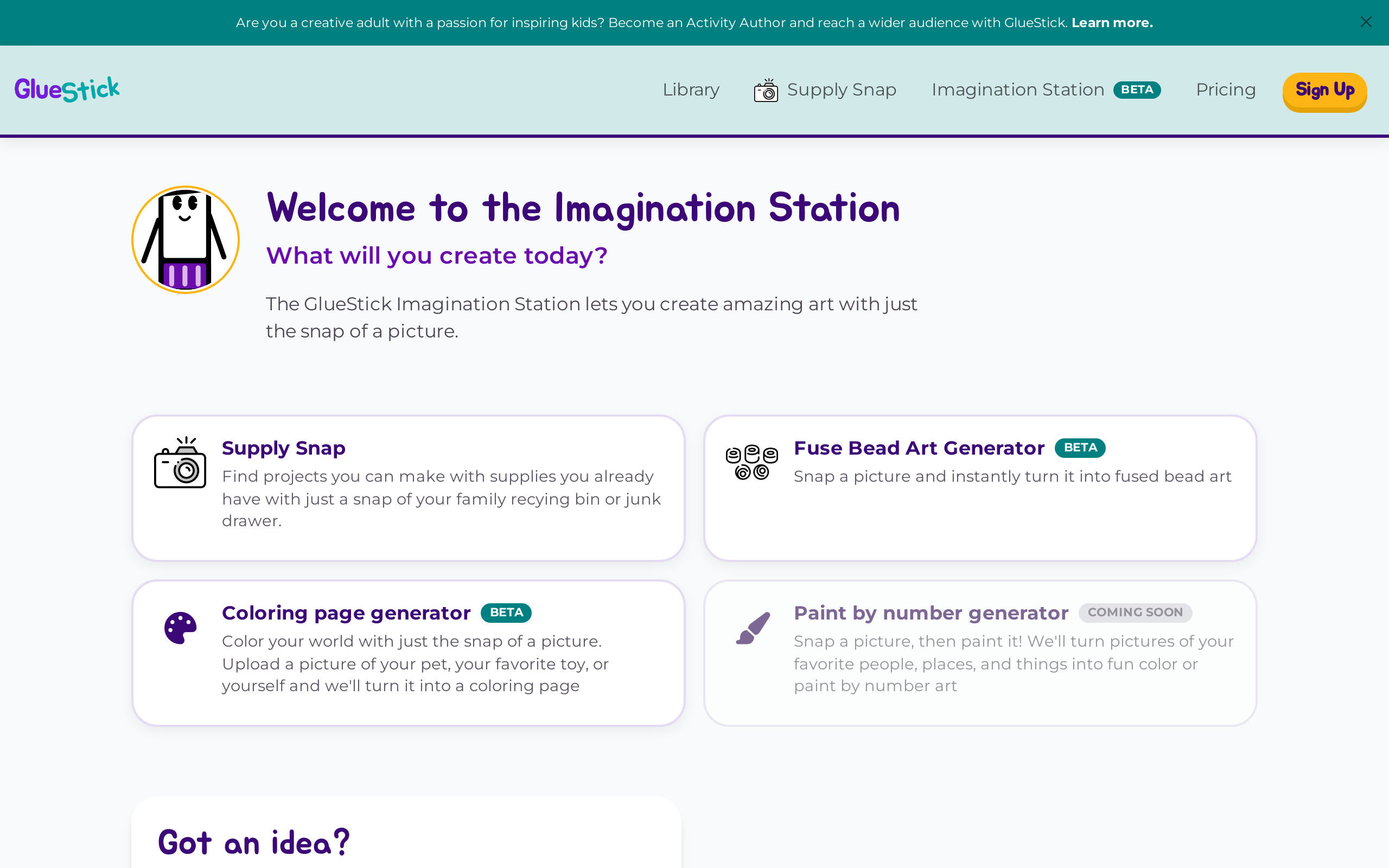
Where to find it
- Open Imagination Station from the main navigation.
- Choose Coloring page generator.
You can also go straight to /imagination-station/coloring-page-generator.
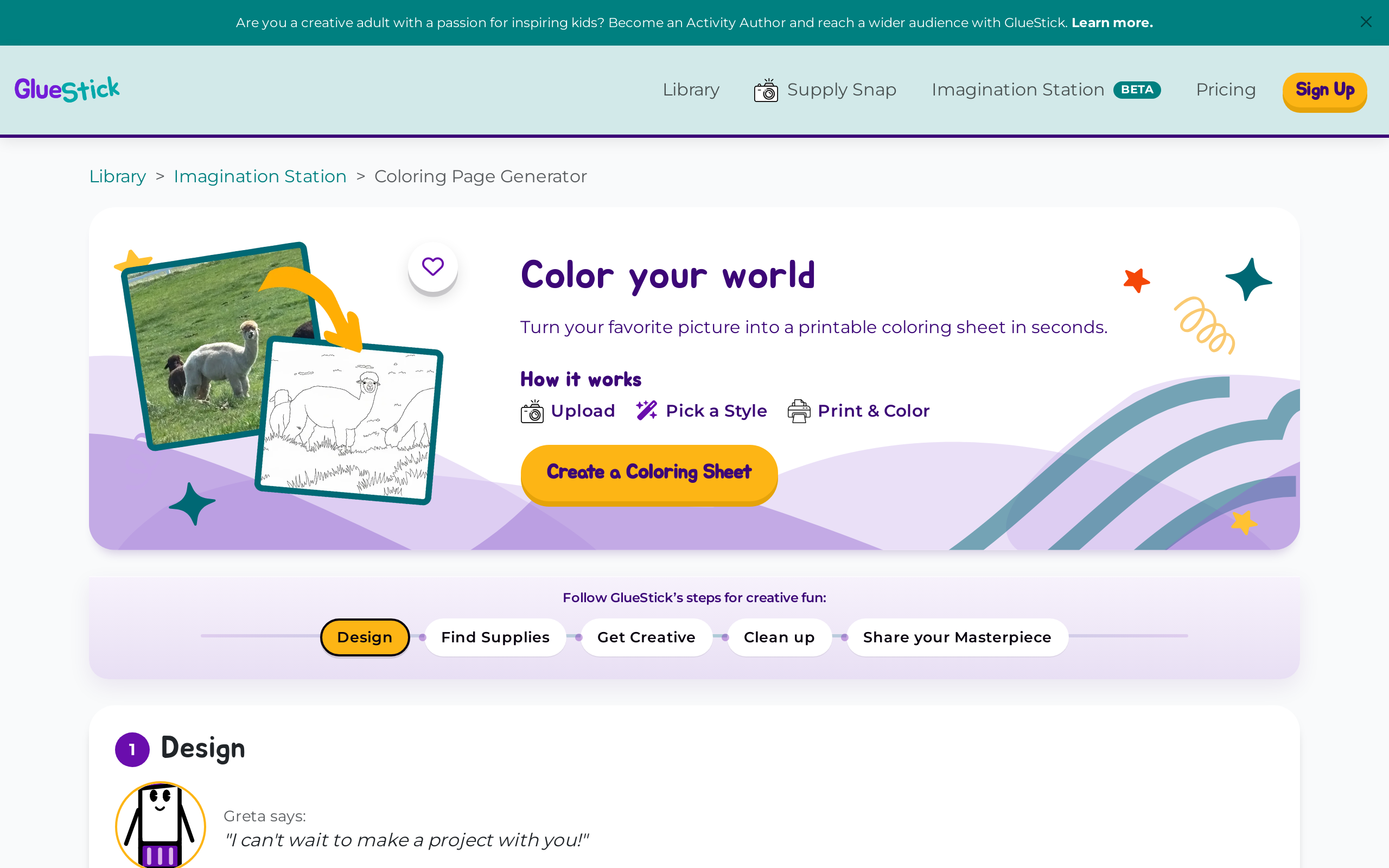
Before you start
- Anyone can open the tool and make a sheet during beta — generating is free.
- Save, Print, and Download PDF need a free GlueStick account.
- Guest uploads ask you to agree to privacy and terms first (Before you upload).
- Camera use asks a grown-up to tap Continue before the browser asks for camera permission.
Photos are checked for kid safety. If a picture is blocked, see What pictures are OK for our image tools.
Make a coloring sheet
1. Design — pick a picture
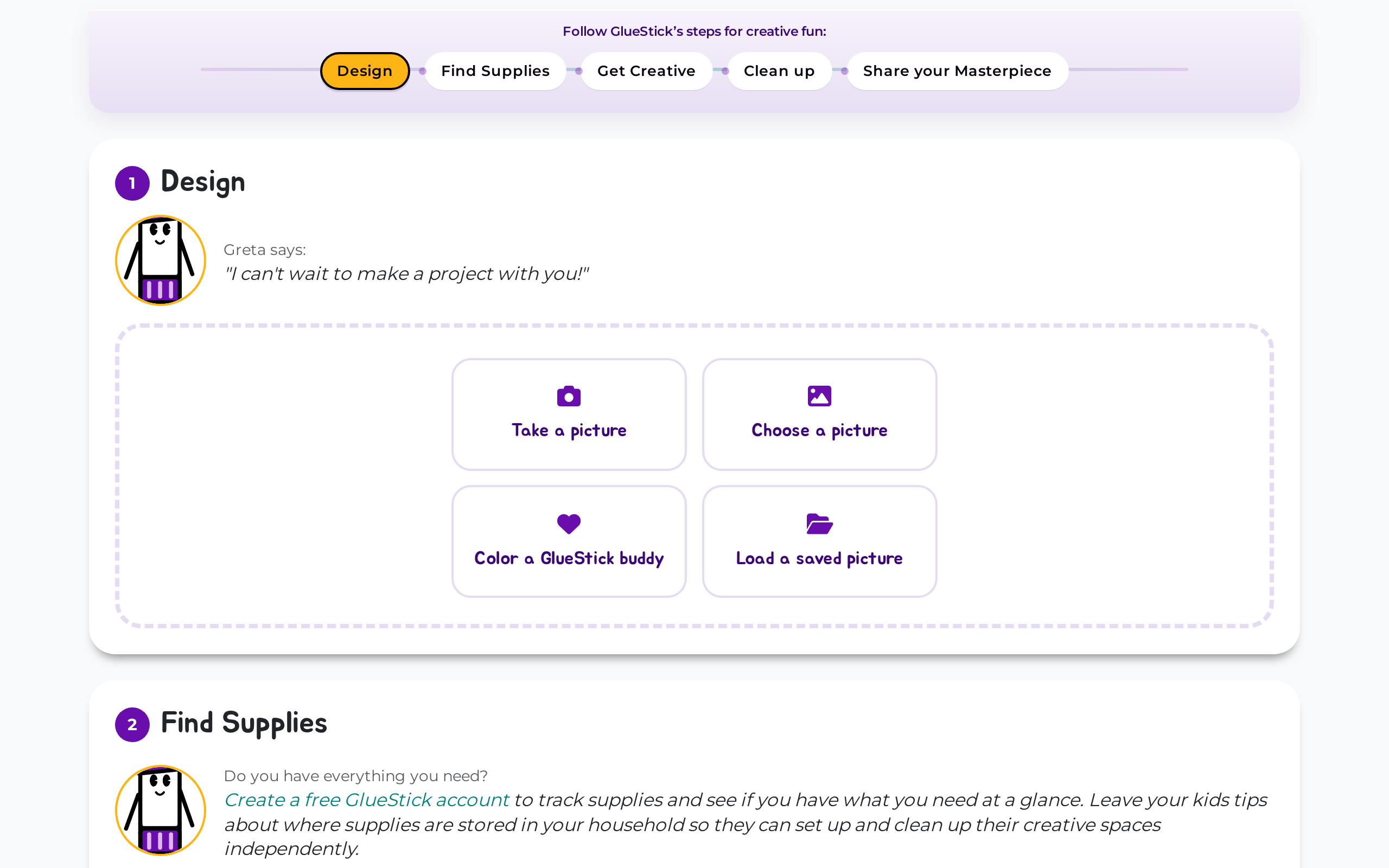
On the Design step, choose one:
- Take a picture — use your device camera.
- Choose a picture — upload an image from your device (up to 8 MB).
- Color a GlueStick buddy — pick an official buddy, or (when signed in) one of your saved outfits.
- Load a saved picture — reopen a sheet you already saved (account required).
Some official buddies already have a ready-made line-art sheet. When that happens, style controls are hidden and GlueStick uses that artwork instead of redrawing with AI.
2. Design — pick a style and detail
After you have a picture:
- Style: Classic (default), Comic, Storybook, or Detailed.
- Detail level: Low or High. GlueStick defaults to Low for younger kids (about age 7 and under, or when age is unknown) and High for older kids.
- Tap Make my coloring sheet. Status messages show while GlueStick draws.
Your preview shows a GlueStick watermark on screen. That watermark does not appear on the printed or downloaded PDF when you export from an account.
3. Save, print, or download
- Save — name your design (up to 60 characters) and keep it in your household.
- Print — opens your browser print dialog.
- Download PDF — US Letter PDF with a small logo and a short personal-use footer.
If you are signed out, Save / Print / Download ask you to create an account or sign in. GlueStick remembers the sheet in your browser so you can finish after signup.
4. Find Supplies, Get Creative, Clean up, Share
The sticky journey matches other GlueStick projects:
- Find Supplies — checklist for a printer, paper, and optional crayons, pencils, or markers.
- Get Creative — print-then-color instructions (this is not an on-screen coloring canvas) plus Download.
- Clean up — put-away steps.
- Share your Masterpiece — celebrate with an optional finished photo and stars, then open your Art Gallery when you are signed in.
Stars and cost
Making a coloring sheet does not spend Stars. Stars are earned when you finish and Celebrate (one automatic star; a caregiver can raise the total to up to three with the adult password gate). Stars are for dressing up your Creative Buddy — not for generating sheets.
Tips
- Everyday family photos, pets, and ordinary objects work best.
- Famous cartoon characters and branded figures are usually blocked.
- GlueStick does not keep the original photo after generate; saved designs store the sheet, not the camera upload.
More detail: What pictures are OK for our image tools.