Imagination Station
How to use the GlueStick Fuse Bead Art Generator
Snap a picture into a fuse-bead pegboard pattern
Last updated September 15, 2026
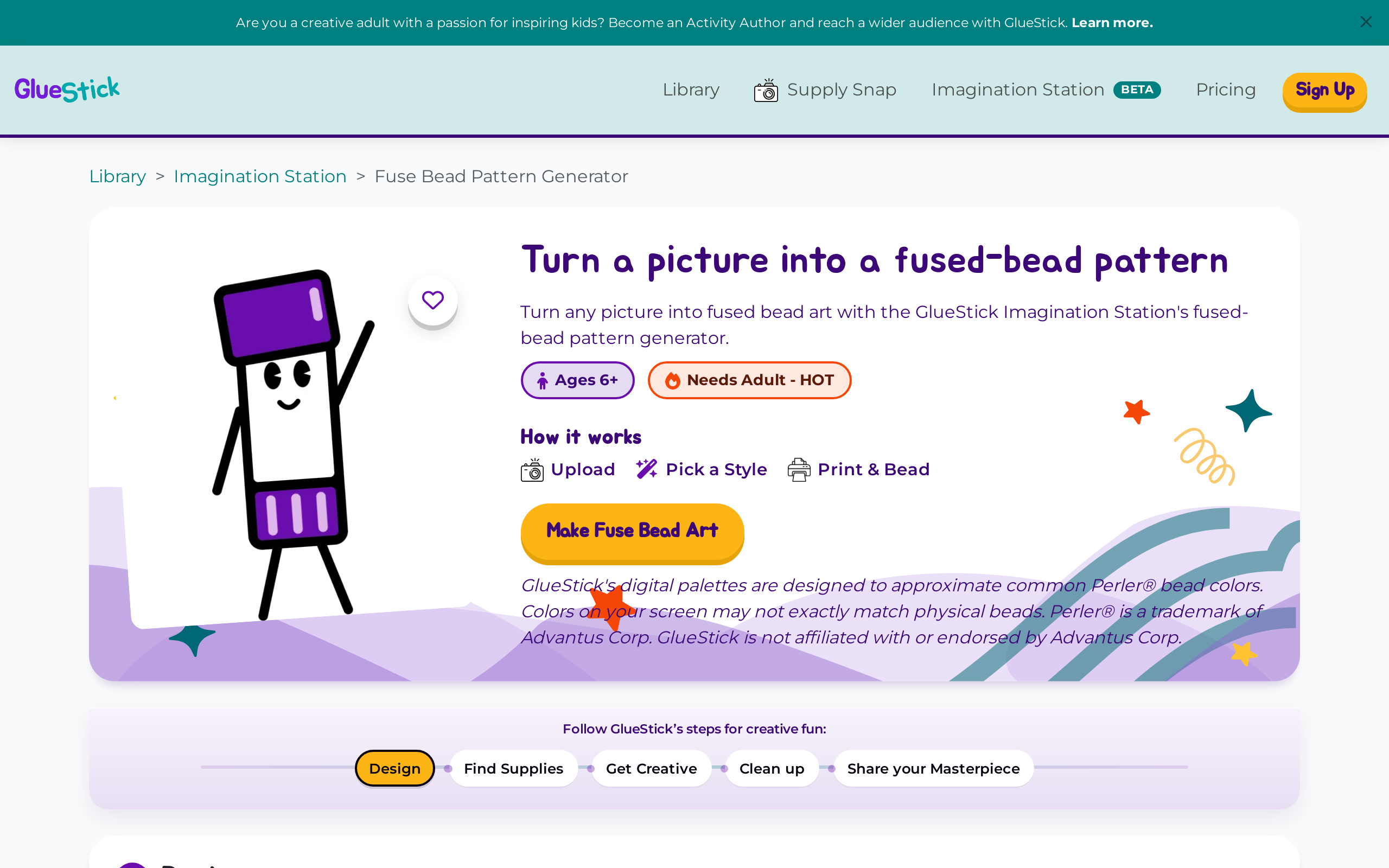
The Fuse Bead Art Generator turns a picture into a pegboard pattern that works with fuse beads like Perler®, Artkal® and Hama®. GlueStick’s digital colors approximate common Perler® bead colors but may not match every physical bead exactly. GlueStick is not affiliated with or endorsed by Advantus Corp. or any other fuse bead manufacturer or distributor.
Where to find the Fuse Bead Art Generator
- Open Imagination Station from GlueStick’s top navigation bar.
- Choose Fuse Bead Art Generator.
Or, you can navigate directly to https://gluestick.app/imagination-station/fuse-bead-generator. Signed-in users can also reopen saved fuse bead patterns from the Bead patterns area of their Profile.
Safety and recommended ages
- Major fuse bead brands such as Perler®, Artkal® and Hama® caution that the products are intended for ages 6+ and must be used under adult supervision
- Fuse beads are HOT — fusing beads with an iron requires a grown-up.
Before you start
- Any adult can open the Fuse Bead Art Generator and make a fuse bead pattern after they agree to our Privacy Policy and Terms of Use. They must also grant permission for GlueStick to use the camera on and/or upload files from their device.
- Child users are prompted to find a grown-up who can accept these policies and grant these permissions before use.
- To Save, Print, or Download a PDF of your coloring sheet, a grown-up will need to create a free GlueStick account and sign up for our newsletter. Don’t worry! You can opt out any time.
- We aggressively filter images that may be inappropriate or infringe on intellectual property. See What pictures are OK for our image tools to learn more.
1. Design a bead pattern
Pick a picture
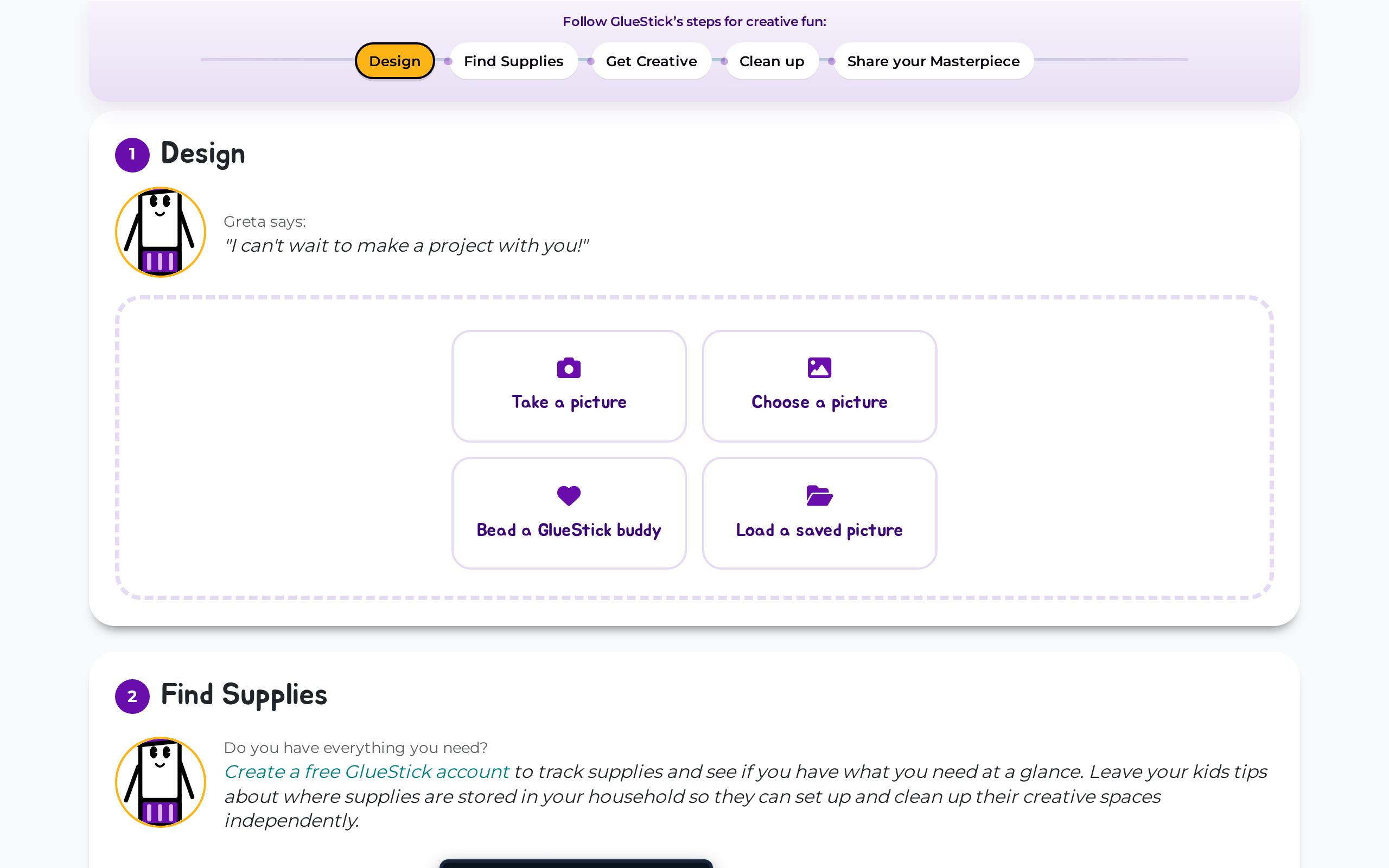
On the Design step, choose one:
- Take a picture — use your device camera.
- Choose a picture — upload an image from your device (up to 8 MB).
- Bead a GlueStick buddy — pick an official buddy, or (when signed in) one of your saved outfits.
- Load a saved picture — reopen a design you already saved (free account required).
Fit it on the pegboard
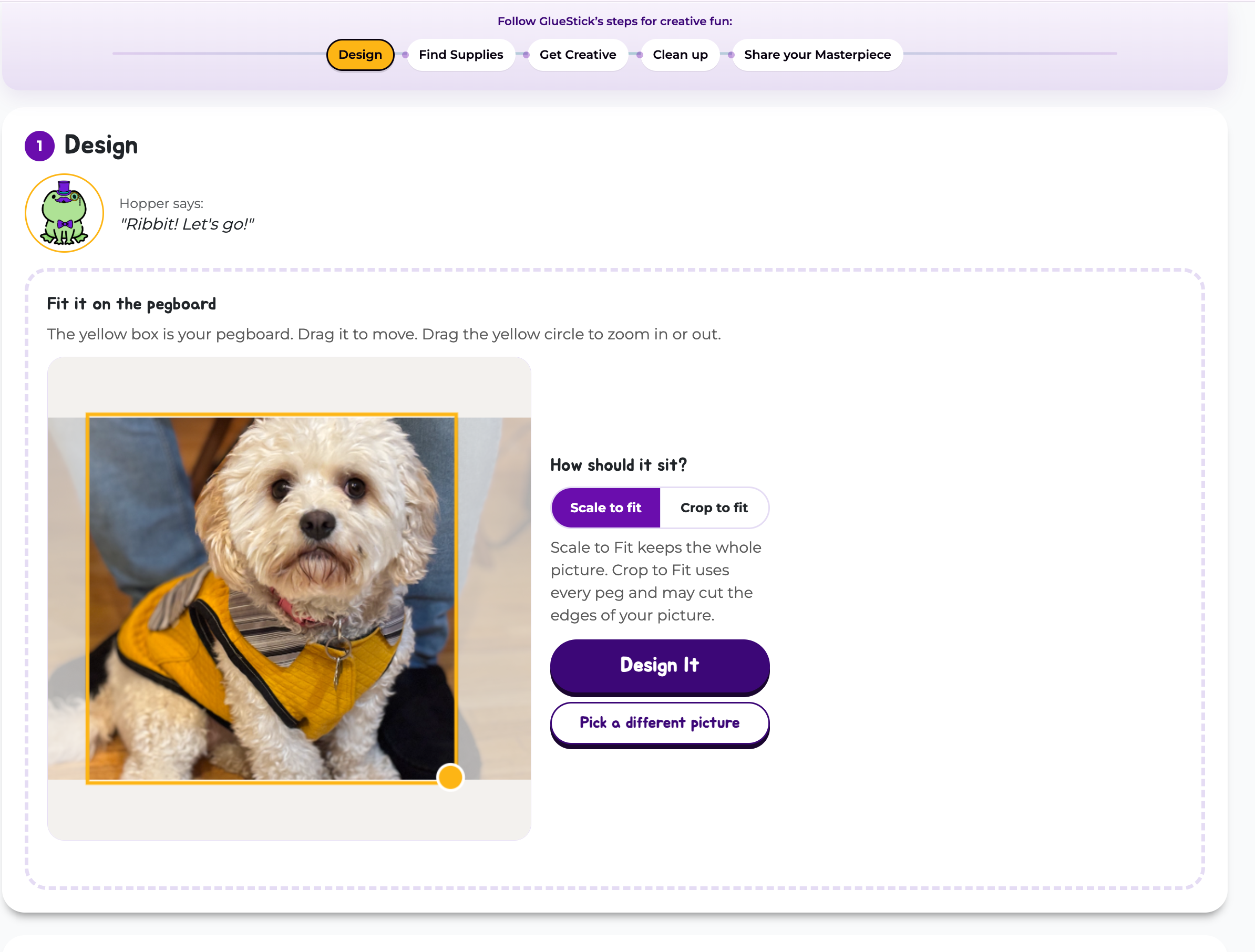
Before GlueStick builds the pattern, tell it how it should fit on your pegboard. There are two choices:
- Scale to fit will fit the entire image onto a standard square pegboard
- Crop to fit will cut off part of your image to make it fit onto the pegboard.
No matter what mode you choose, you can
- Drag the yellow box to move your picture on the pegboard.
- Use the yellow circle to resize the pegboard.
Once you’re happy with the design, tap Design It to generate your pattern.
Edit your design
After generation, you can customize your design.
Change board size
The GlueStick fuse bead art generator supports the following pegboard sizes.
- Small 15×15
- Medium 29×29 (default)
- Big 58×58
- Huge 87×87
Switching between sizes for the first time will regenerate your pattern. For detailed designs, larger designs will give you the best results but also require the most time and beads.
Change Color Palette
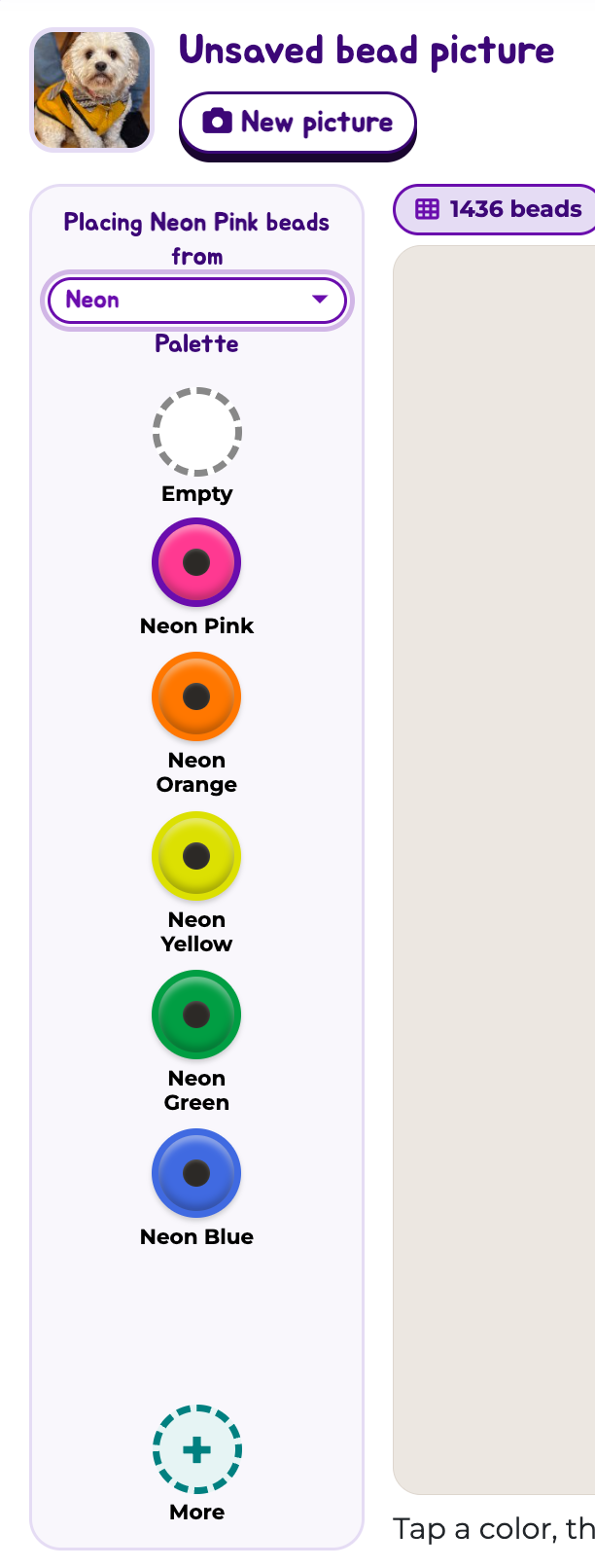
The GlueStick Fuse Bead Art Generator has approximations of 20 Perler® brand bead palettes. Use the Palette switcher to choose between them.
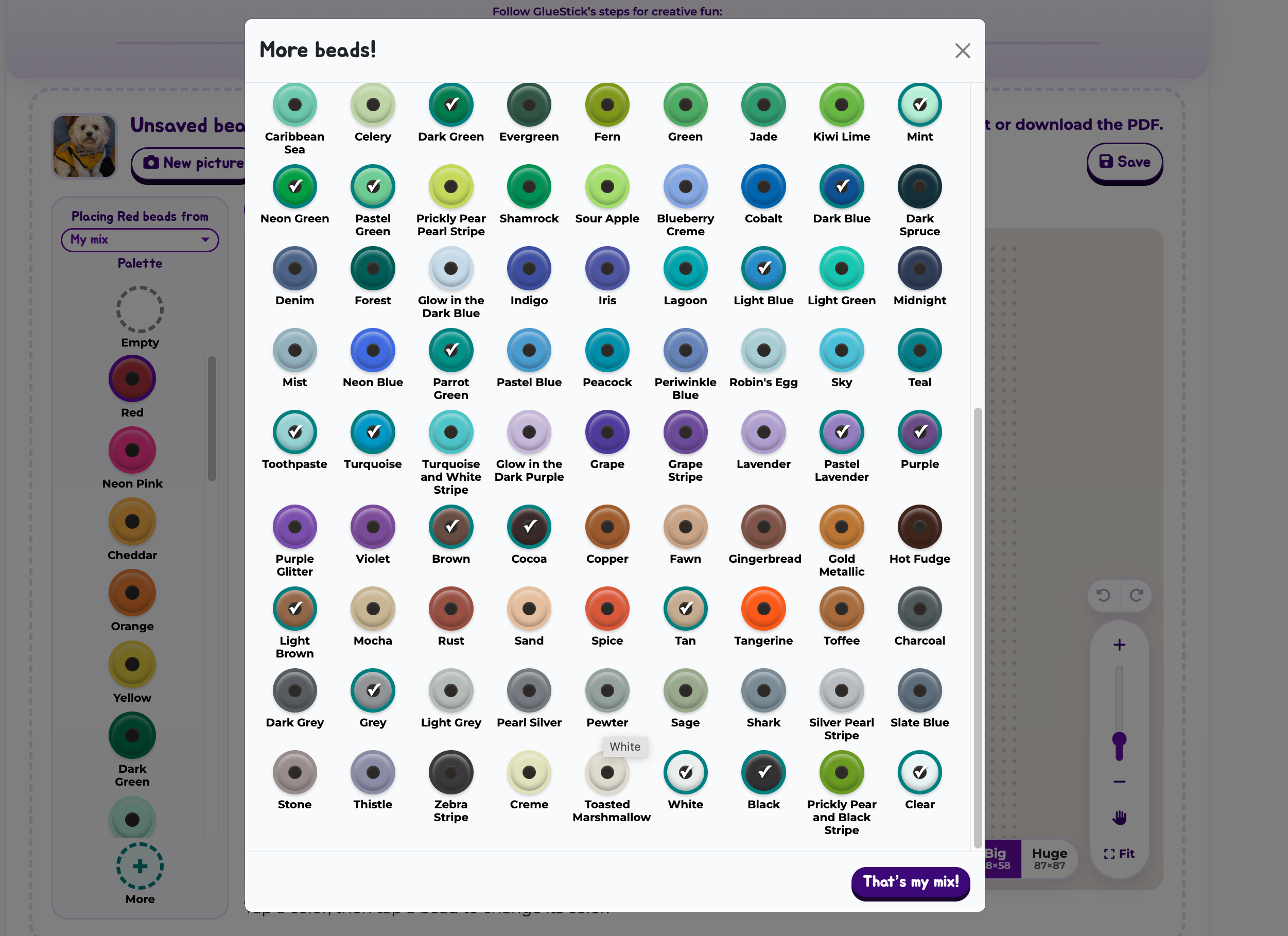
You can also create your own mix of beads using My Mix. To create your own mix, click the + button at the bottom of the Palette switcher. Tap to turn specific colors on or off for your design. The mix will save automatically. You may need to toggle between another palette and your mix to make it apply properly.
Recolor beads
Individual beads
You can change the color of any individual bead by selecting a color from the palette and then tapping on the peg you want to recolor on the pegboard.
Changing all the beads of one color
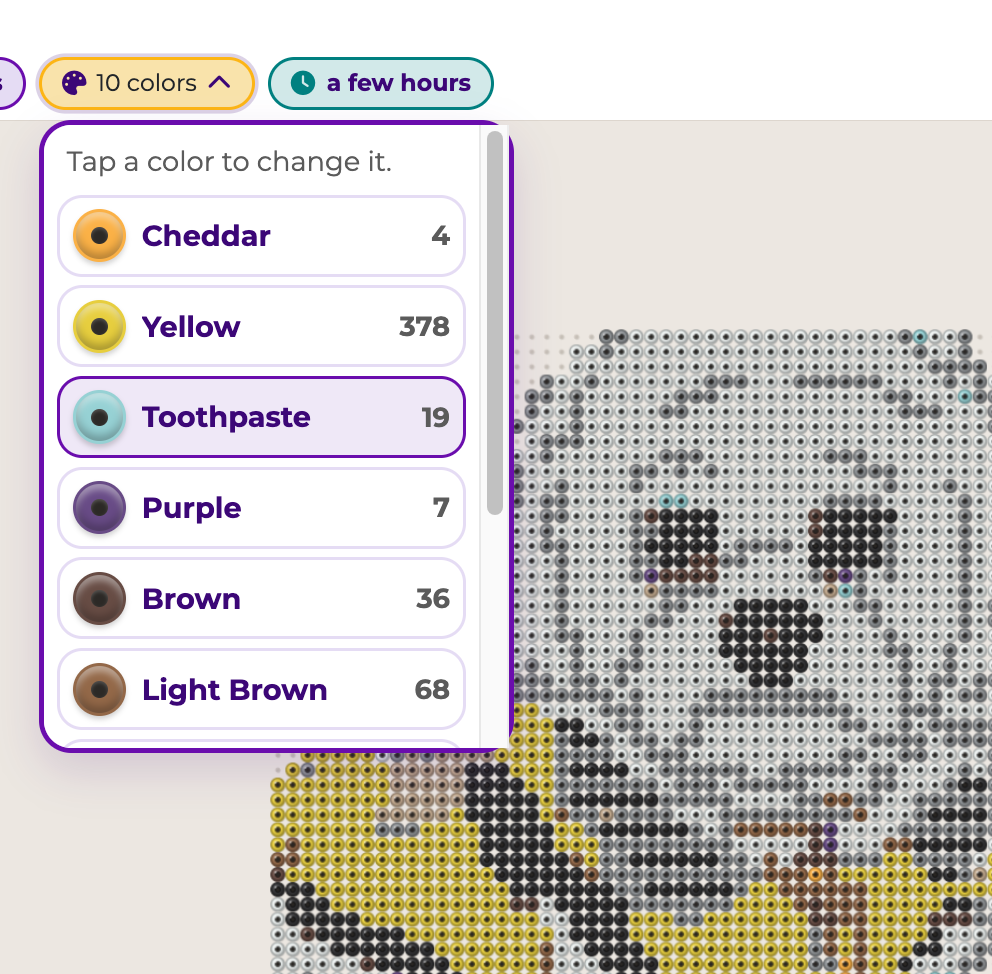
Sometimes, the generated image may use purple for black or seem to randomly add a blue shadow instead of a grey shadow. This is called pixellation, and the easiest way to clean it up is to change all of the beads of one color to another at the same time. To do that, use the color menu at the top of the pegboard.
1) Open the color menu
2) Tap the color you want to change. This will bring up the More Colors modal
3) Tap the color you want to change the beads to. The modal will close, and all the beads of that color will be updated.
Empty pegs and clear beads
To remove a bead from a peg, select the Empty Peg option from the top of the peg board. Empty peg is always visible on the palette.
To add a clear bead, make sure your palette includes clear beads as an option. Clear pegs will show at the bottom of your color palette.
Undo/redo, zoom and pan controls
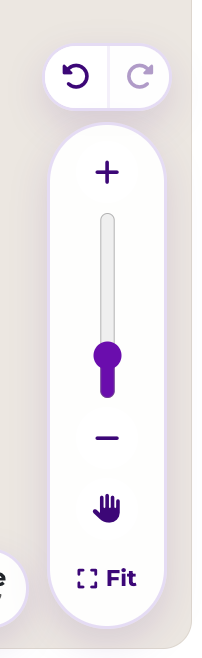
If you make a mistake, the undo and redo buttons are located above the zoom controls in the lower right corner of the pegboard.
You can zoom in or out using the slider or +/- buttons. To move the pegboard around the screen while zoomed in, use the hand icon to pan. Just make sure to turn pan mode off before placing more beads!
Fit will reset the pegboard to fill the screen.
2. Find Supplies
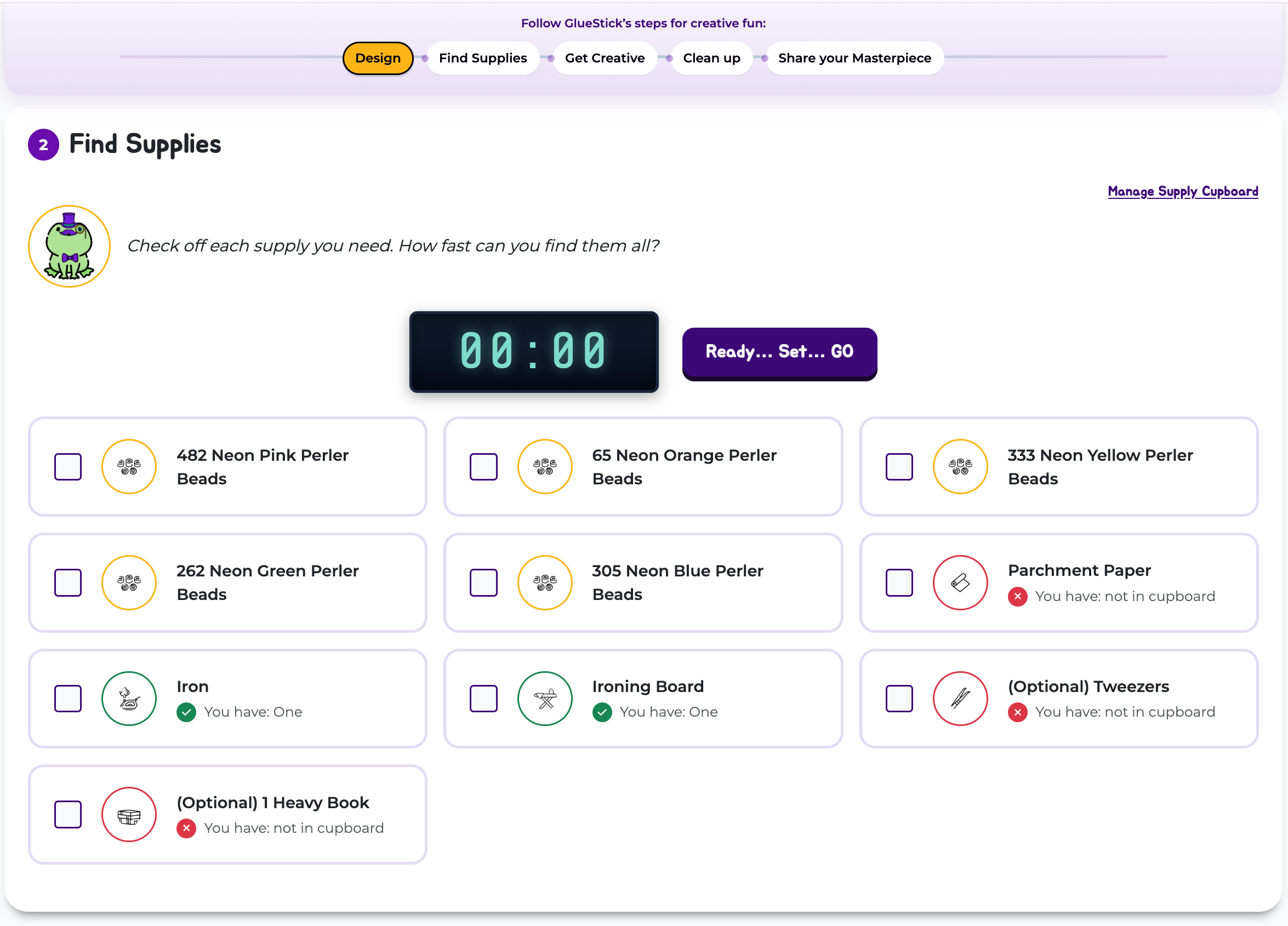
GlueStick will automatically count how many beads you need of each color. Turn it into a scavenger hunt to find the beads and other supplies you need for your project.
GlueStick’s Supply Cupboard tracks your inventory of common craft supplies so you can see at a glance what supplies you have and what you might need to purchase to complete your project.
3. Make it
Save, print, download
- Save — name your design (up to 60 characters) and we’ll save it to your profile so you can make it again another time.
- Print — opens your browser’s print dialog and will print your pattern, bead list, and instructions.
- Download PDF — Downloads the pattern, bead list, and instructions as a pdf.
To Save, Print, or Download a PDF of your coloring sheet, a grown-up will need to create a free GlueStick account and sign up for our newsletter. Don’t worry! You can opt out any time.
Beading and fusing your pattern
GlueStick includes the typical supply list and instructions needed to create fuse bead art. That said, instructions may vary by manufacturer, color or palette, and may change over time. ALWAYS read and follow the manufacturer’s instructions that came with your beads for the best results.
4. Clean up and Celebrate
Once your project is complete, GlueStick helps you Clean up and Celebrate!
- Clean up — Use our checklist to put-away all your fuse bead art supplies and tidy up your space. You might even unlock a new creative buddy.
- Celebrate! — Share your masterpiece by taking an optional finished photo to share with friends and family. Reward your little maker for a job well done with GlueStick stars that can be redeemed for accessories to dress up their creative buddy. Then, admire the work in the GlueStick Art Gallery.
Data Retention Policy
GlueStick does not store original images any longer than necessary to generate your pattern and support your creative journey from setup to cleanup. Our AI vendors also have a zero data retention policy. Your images will never be used to train a model or be shared outside of GlueStick and our trusted vendor.
Tips
- Simple photos of people, pets, and ordinary objects work best.
- Pick an image with a large, central focus.
- Respect intellectual property. Do not create coloring sheets of famous cartoon characters, branded images, trademarked logos, or any likenesses you do not have the rights to use.
- Anything resembling or inferring violence, weapons, drugs, alcohol, gore, hate speech, or nudity is not allowed to be turned into a coloring sheet. GlueStick errs on the side of caution and will prevent images of swimwear and lingerie from being turned into coloring sheets.
For more details, see What pictures are OK for GlueStick’s image tools.